My super quick process for adding chapters to podcasts
Chapters in podcasts are super important, in my opinion, and I make sure to add them to everything that I create. Here's the process I use to get them into my shows faster than ever before.
0- Have your chapters ready to go
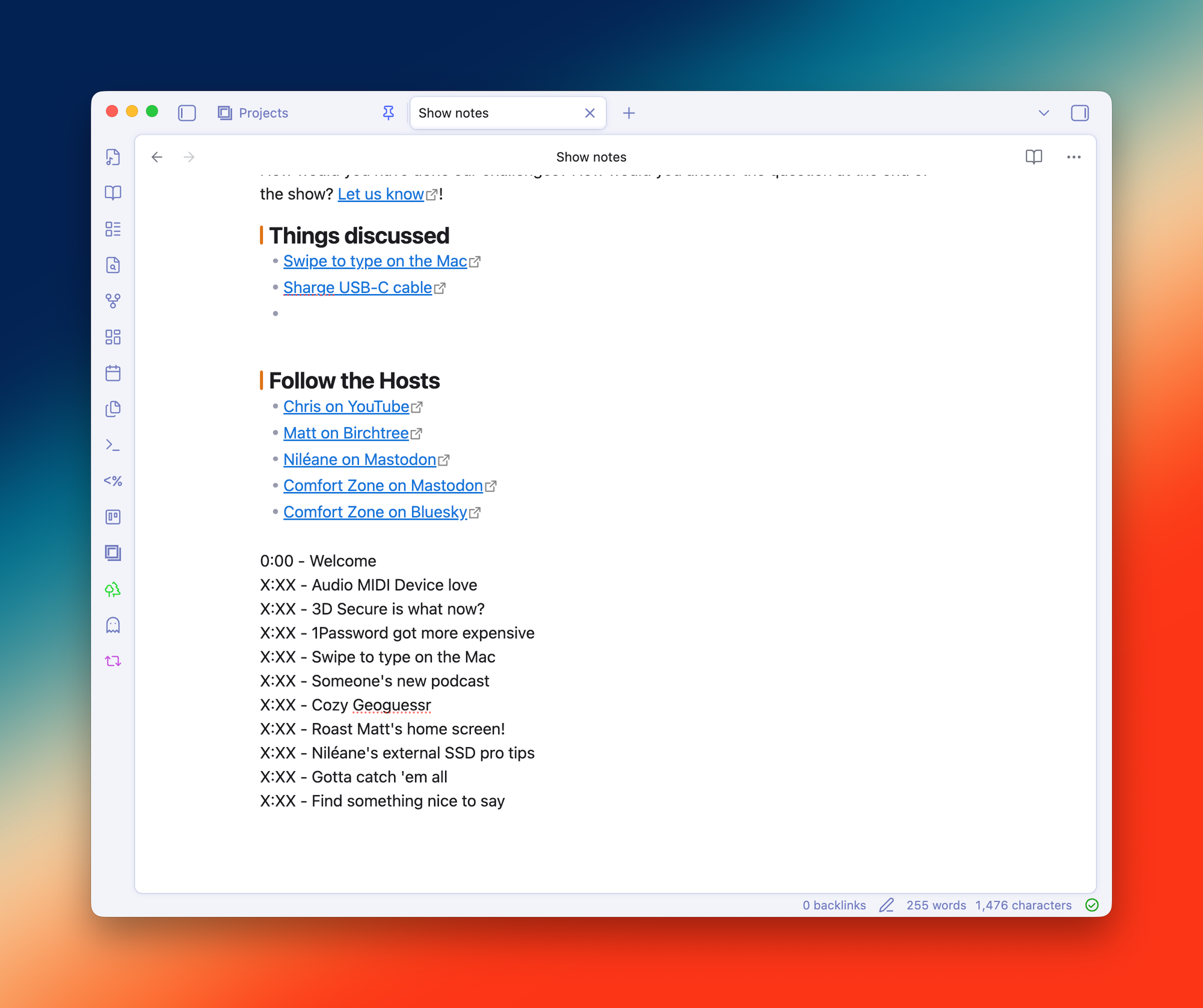
The best thing you can do to speed up this process is to write down what chapter breaks you want as you record. I do this in Obsidian, which is the app I use to write the show notes, and I just have a little section at the bottom as we go where I write down the chapters. We edit the podcast, so I don't know exactly what the timestamps will be when I'm recording them, but just having them in order is helpful.
You can ask AI to generate the chapter titles for you as well, but I find it god-awful at that. Put in a little human work, it's worth it.
1. Generate subtitles
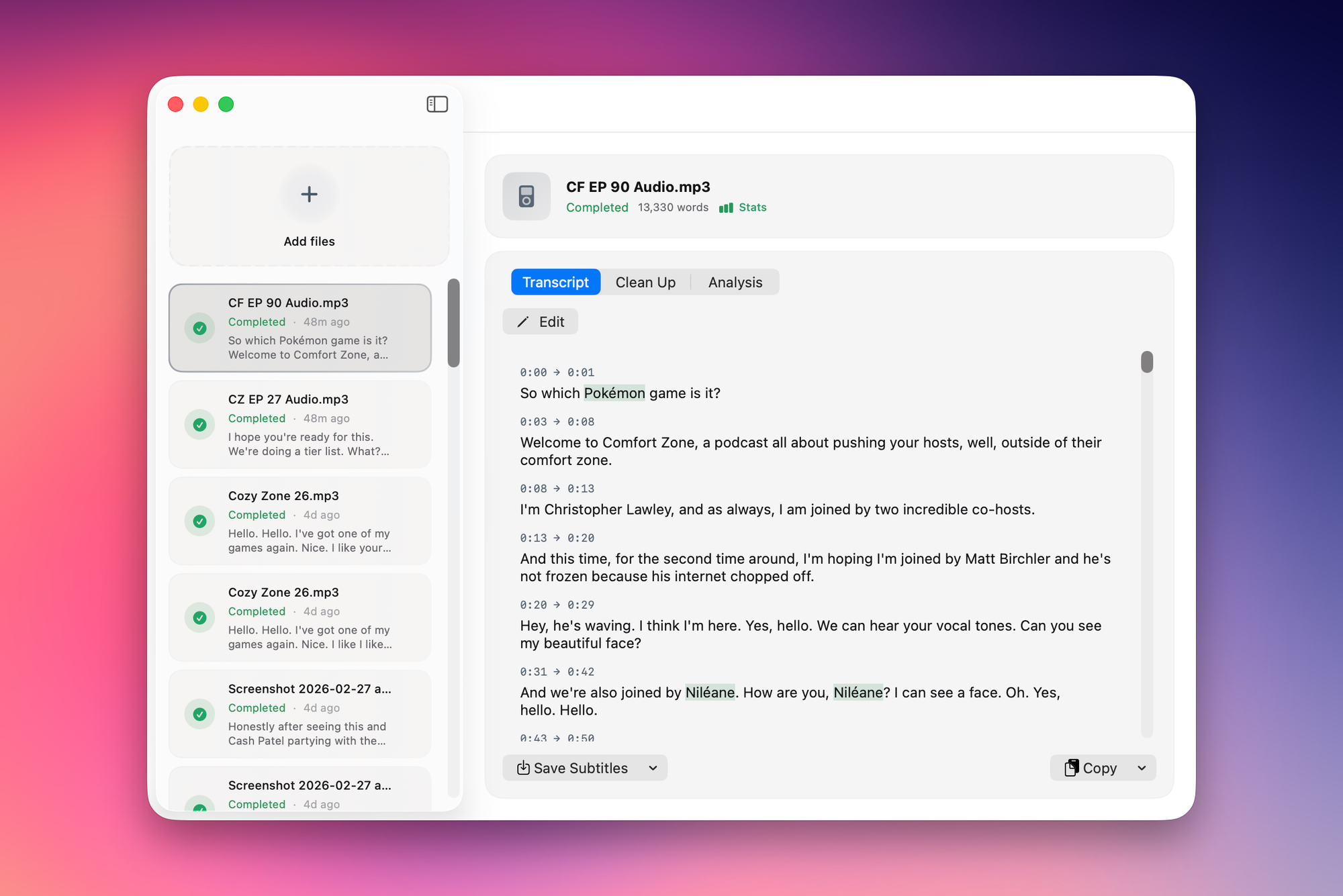
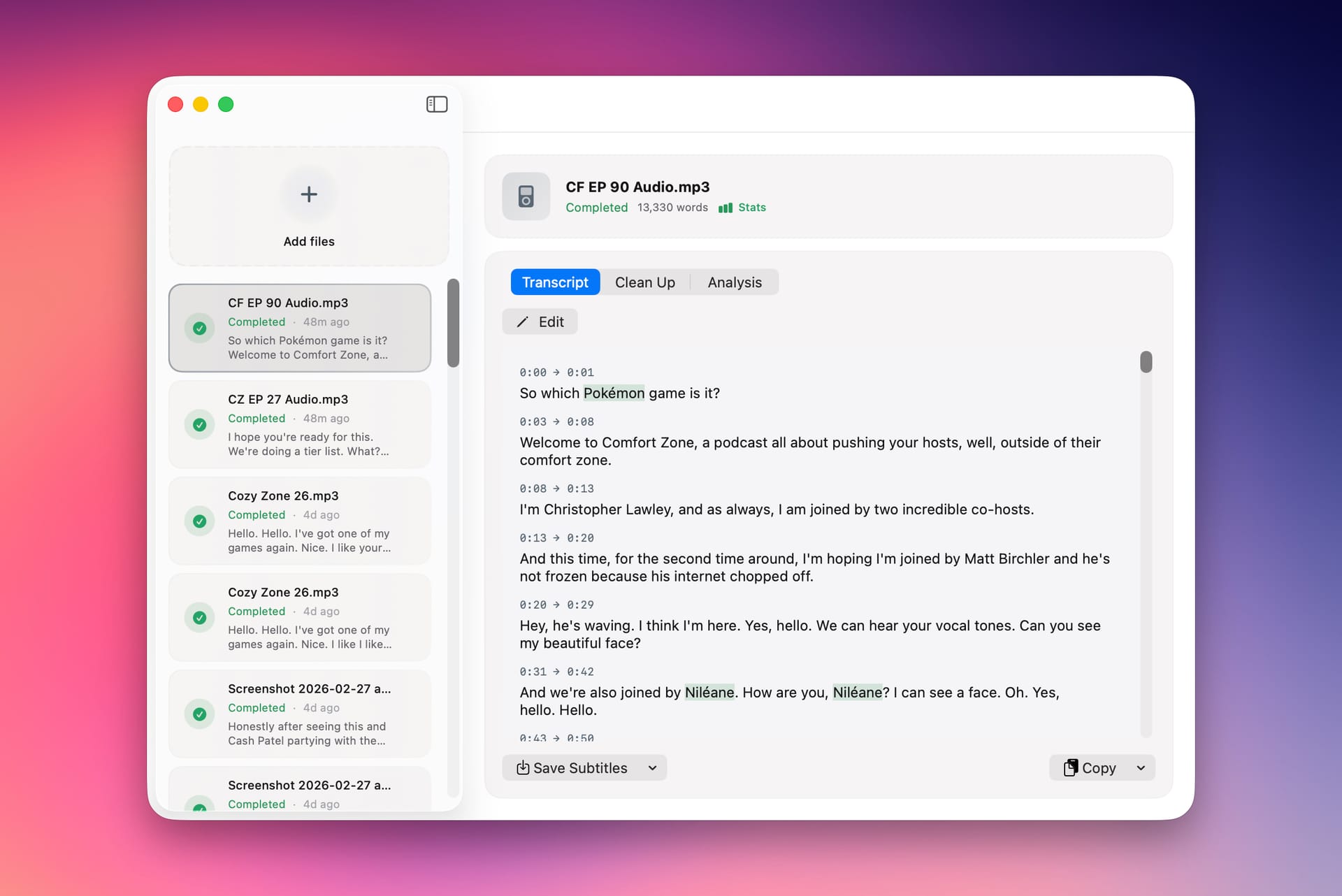
Step one is taking the final audio file and generating subtitles for it. I obviously use my own app, Quick Subtitles, which works great. I personally use the Whisper model as it is much slower, but it is more accurate to the point that it's worth it to me. Paired with the cleanup feature in Quick Subtitles, my transcripts are usually very good with little effort.
2. Ask AI to help
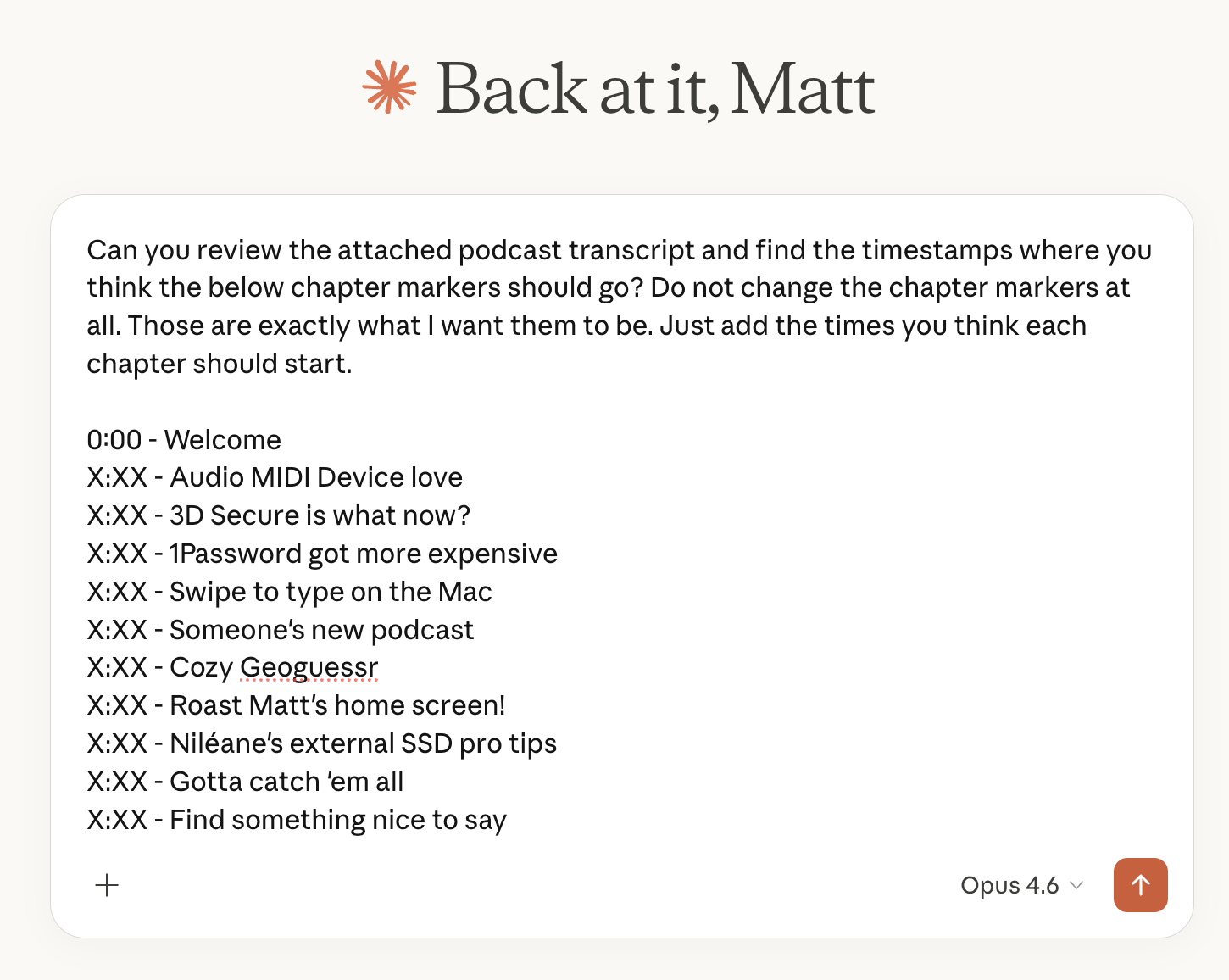
You certainly don't have to do this if you're not comfortable with it, but this is what I tend to do. I take those chapters I wrote out and use a short prompt to tell Claude what to do with it. Obviously, LLMs are pretty interchangeable, so use whichever one you prefer, including a local model if that's your preference.
This will get you a response something like this.
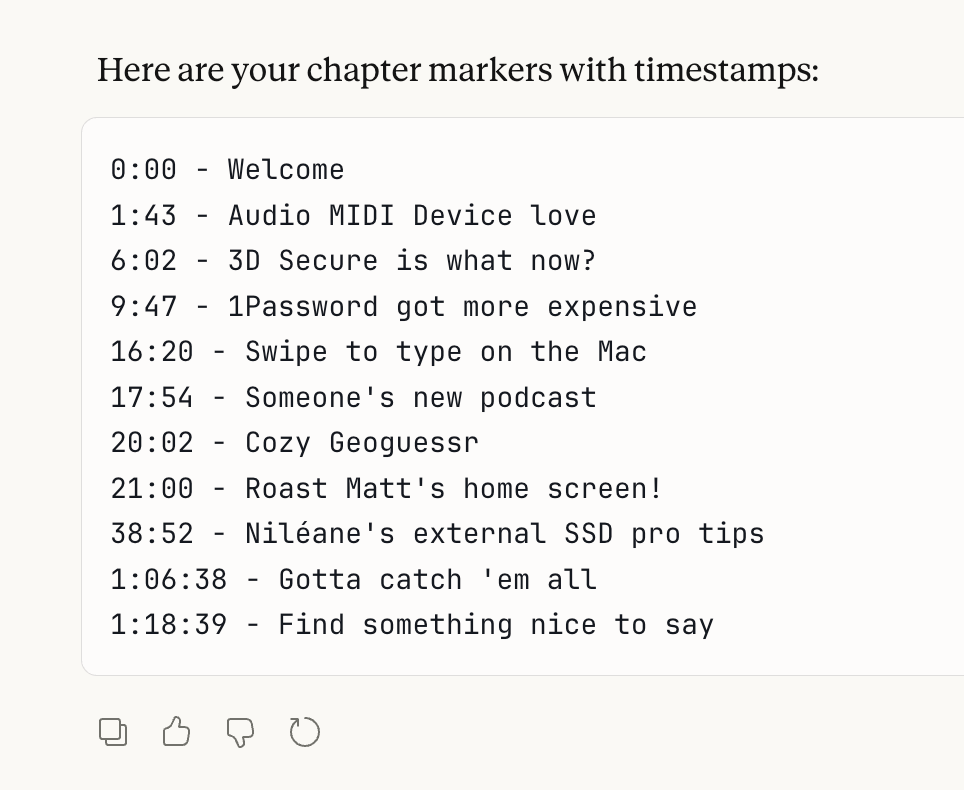
Copy that to your clipboard and you're ready to move on.
3- Import it all into Chapter Pod
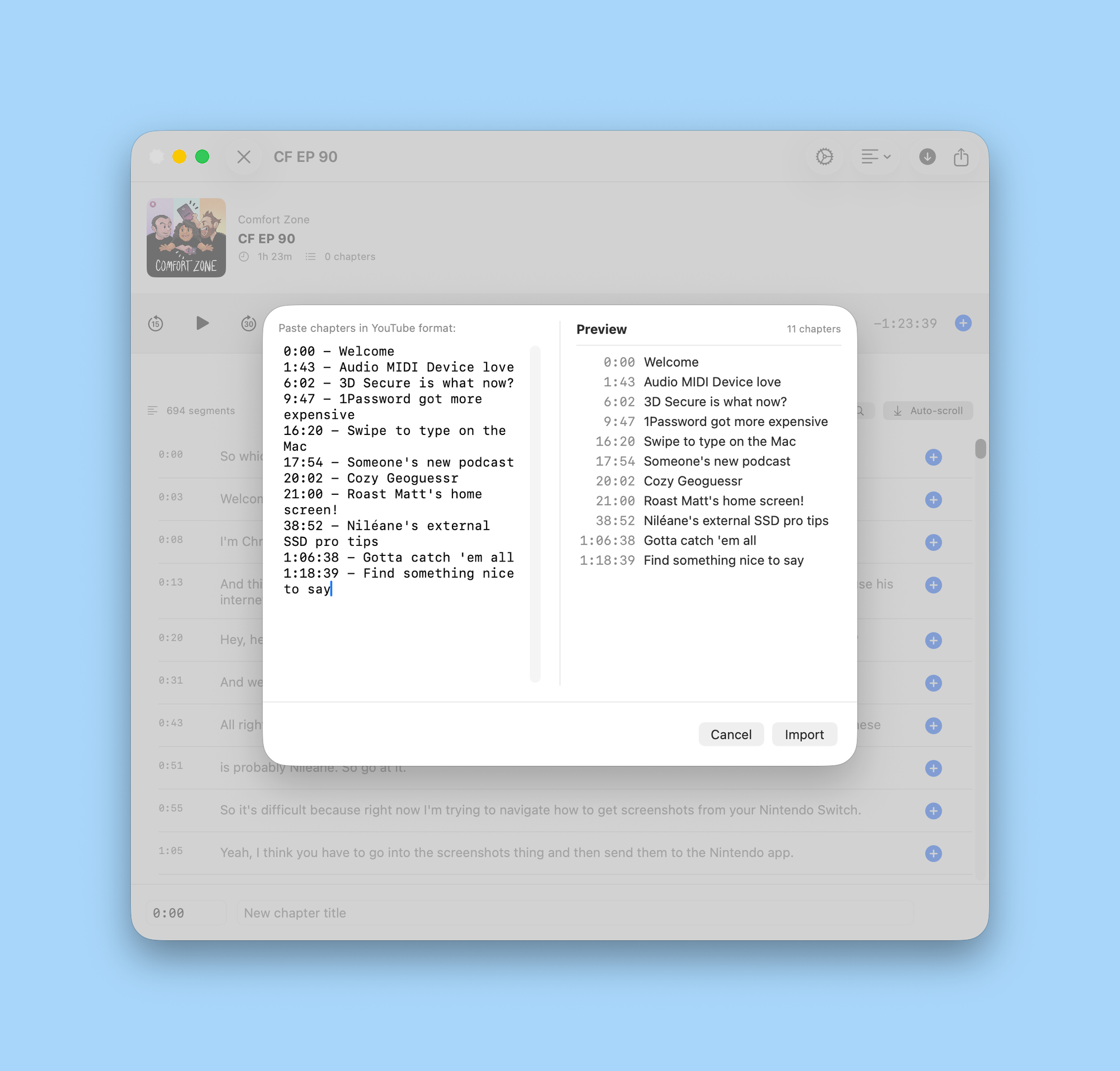
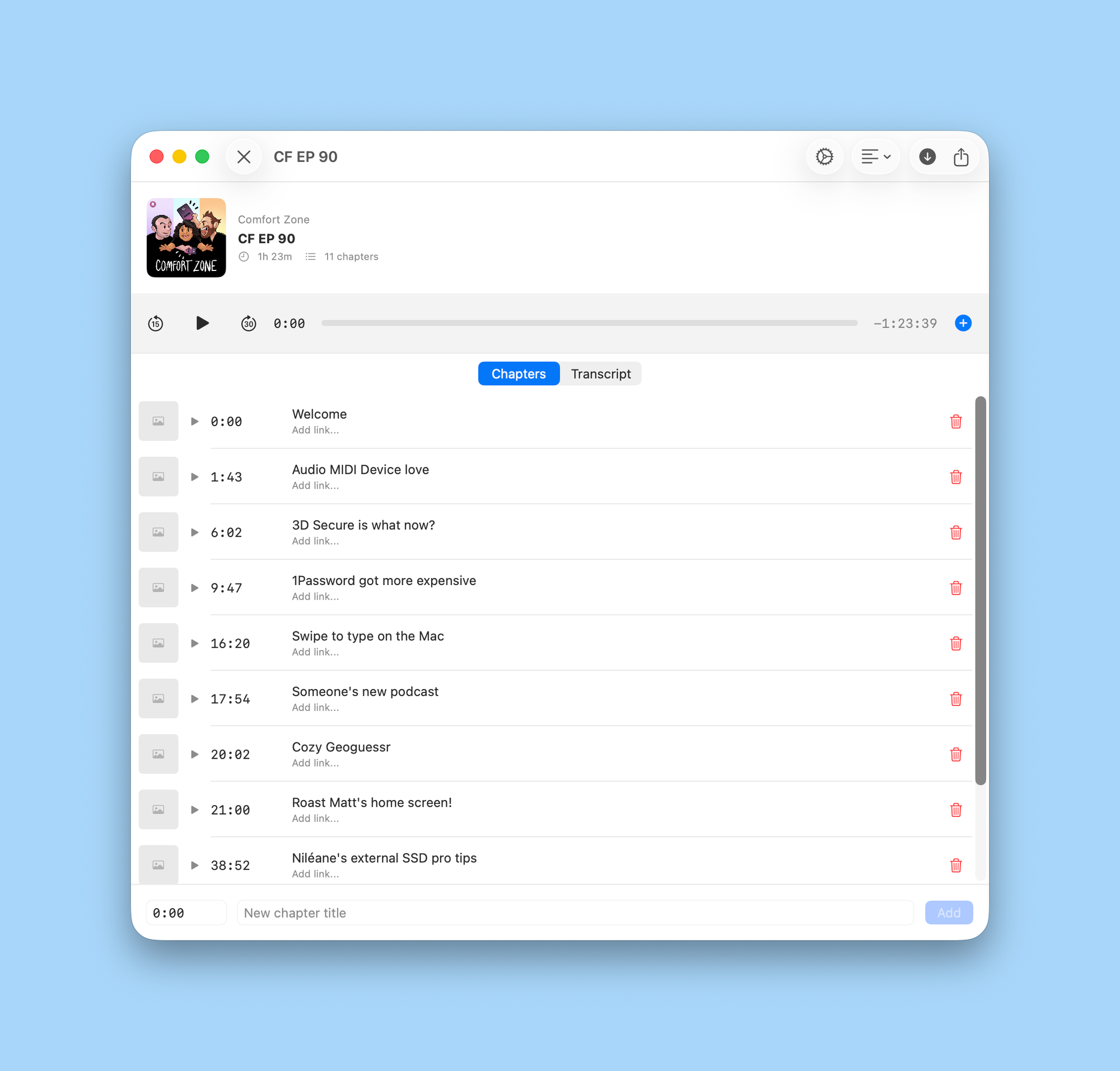
Now you can drag your audio and .srt files in ChapterPod, and hit Command + i to import chapters from text. That will give you all your chapters ready to go.
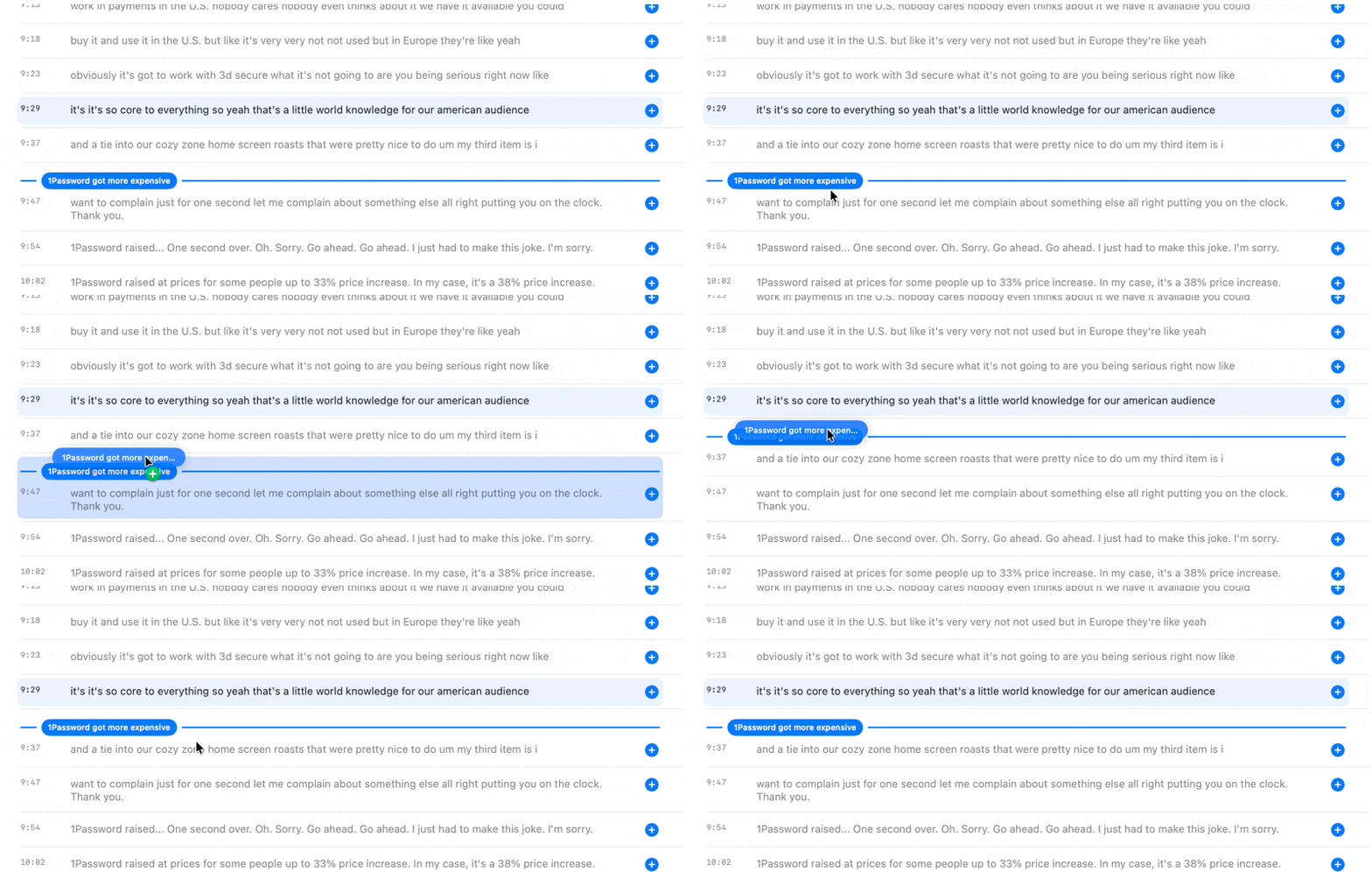
However, the AI will not be perfect and you will want to go into the transcript view to see exactly where it placed these chapter markers so you can fine-tune it down to the second. In my experience, language models tend to put the chapter marker 5 to 10 seconds later than I would. So it's just a matter of dragging the chapter marker from the transcript view up a little bit.
And that's it, you're done! Export the file and you'll have your fully-processed podcast file with chapter markers in less time than ever.