Workbench is the best developer tool I've ever made (in beta now)
Agentic coding has grown quite a bit since I started dabbling in this two years ago. We used to request tiny changes to functions that the agent would get wrong half the time. But today, everything has changed, and what we're asking these agents to do is far more complicated, and they are exponentially better at executing on these things. Over the past 12 months, I have seen the most hardened, skeptical developers I know, who have been doing this for decades, shift from skepticism to full-blown amazement at what is possible today.
As developers, our tools need to change to keep up and to satisfy the new needs of working in this new manner. I'm not the first person to build something like this, but none of the solutions I was able to find solved my needs the way I wanted. So I built my own. It's called Workbench.
Of note, Workbench only works with Claude Code.
The core concept
A year ago, when using agentic tools, you would ask for a small change, you would review the code, and you would approve the change effectively line by line. Today we ask for much larger changes, some of which can take minutes, if not hours, to fully execute on. Coding agents are spinning up sub-agents to split up the work. They're creating task lists. They're breaking their work into distinct commits and pull requests.
Additionally, now that we can do more, a lot of us have more than one project we're jumping into every day. Maybe we maintain multiple public projects, or we have personal projects that we like to poke at as well.
Workbench aims to make it dead simple to keep track of everything you're working on, everything your agents are working on, and to be able to do so in a beautiful interface that makes development fun.
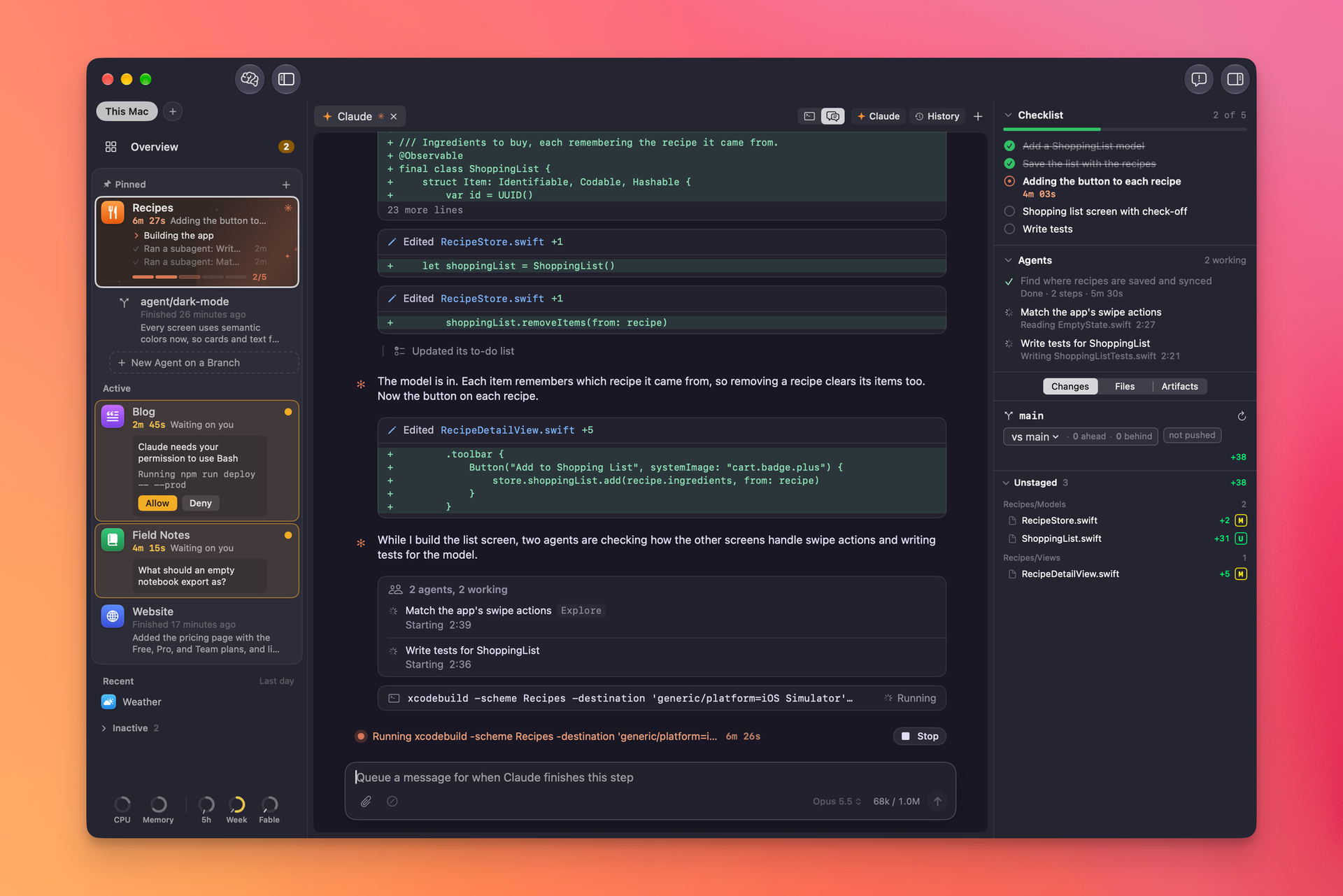
The core of Workbench is the project list on the left side of the window. Your projects are sorted into active, recent, and inactive statuses, and they'll move up and down this list as you use them automatically.
You can also pin projects you want to stay at the top so that you never lose track of them. As you send Claude off to do things in each project, that project will get a beautiful animated orange background indicating that it's working, and you'll get numerous indicators from text to progress bars indicating how well it's doing. If Claude needs permission to do something, you can allow or deny that action directly from the sidebar. If it has questions for you, you will see them appear there as well. Once it's completed all of its goals, it will turn green so you can check in on it and test to make sure it did what it said it was going to do.
The right sidebar is all about showing you details on whatever project you're looking at. It will show you Claude's checklist. If it's doing a multi-part project, it will show you the status of any sub-agents that have been spun up, and critically, you can see all file changes and commits in here, including full diff views. You can also browse the files of the project and easily access any artifacts that have been created. I'm not going to pretend that I read every single line of code that Claude generates, but there are absolutely times where I want to and need to review the code to make sure everything's being done as expected.
Remote access - Mac
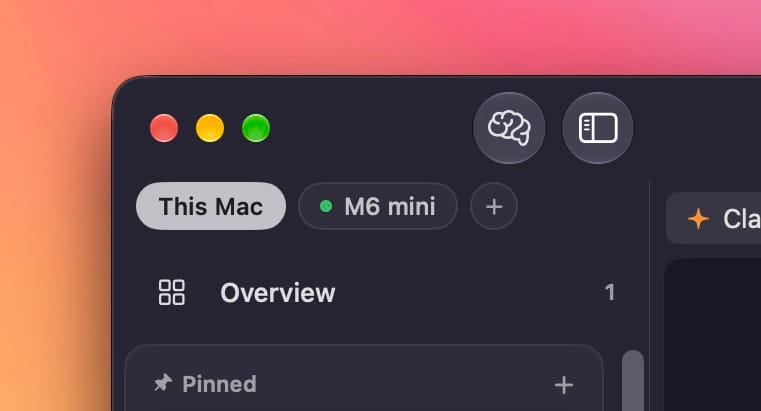
This is where this project started to get insane for me personally. Not only can you control Claude Code in projects on your local machine, you can also link another Mac running Workbench and not only monitor those projects, but fully control them remotely as well. Everything you can do with a local project, you can do on a remote Mac.
A use case for this might be someone who is developing iOS apps, which can be pretty heavy on your system, and you prefer to have them build and test on a headless Mac Mini, for example, so that you can use your laptop without killing its battery life and slowing it down.
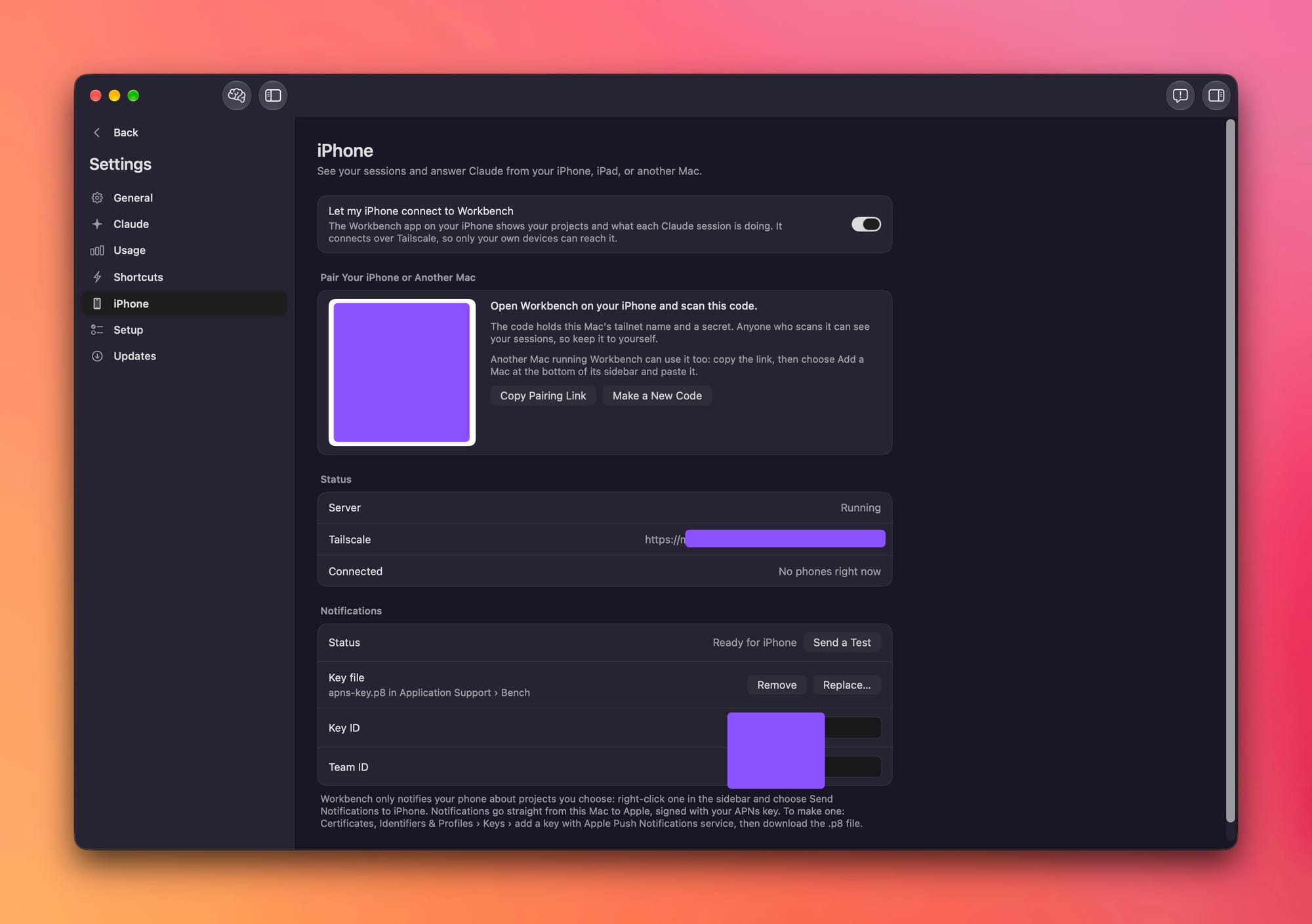
To set this up, you want to install Workbench on the Mac Mini. Go to Settings, iPhone (to be renamed shortly), and copy the pairing link. Paste that into your laptop, Workbench, and you're connected.
Remote access - iPhone and iPad
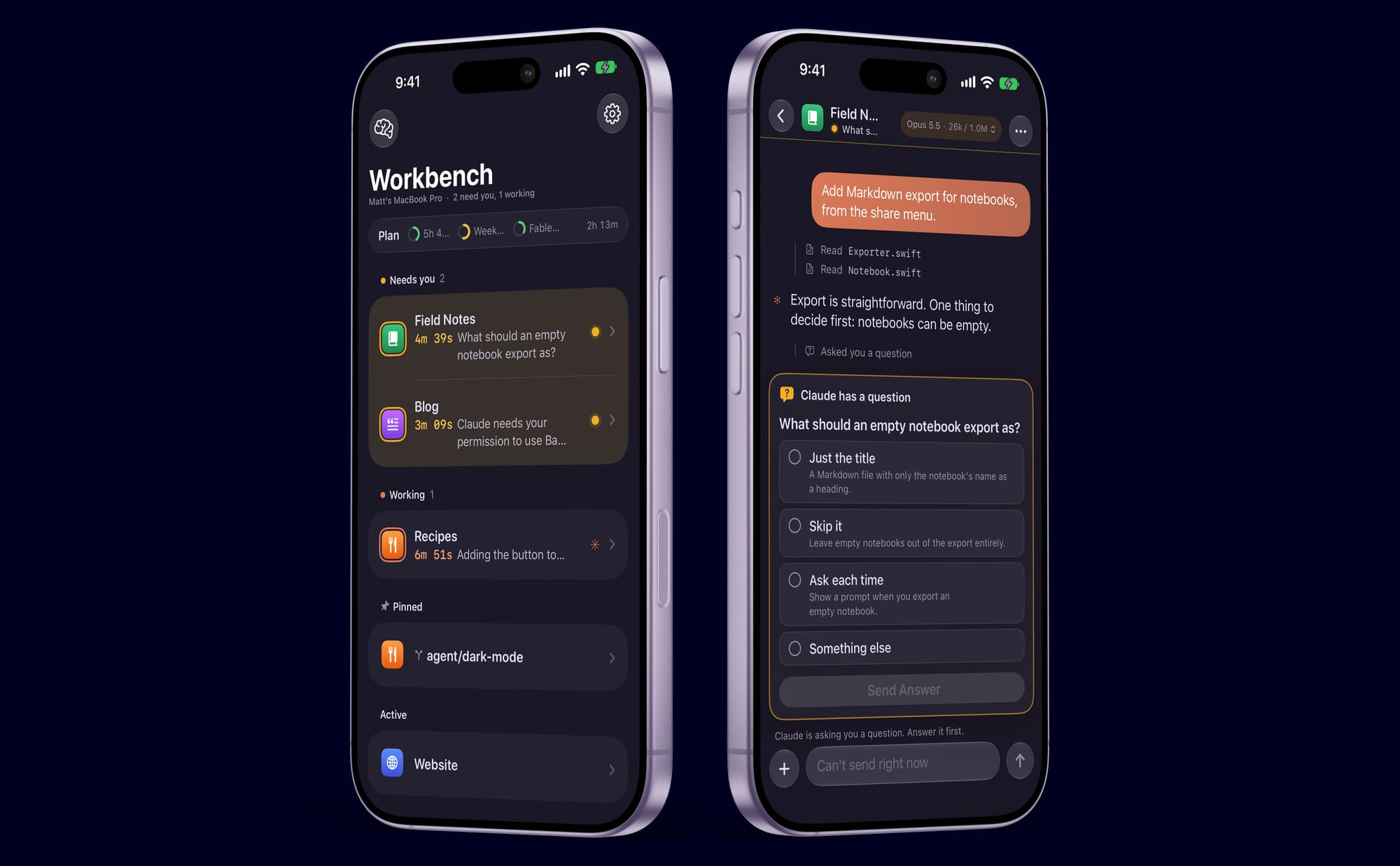
Another thing that was important to me was to have access from my iPhone. I sometimes will set Claude off on some sort of coding task and then take the dog for a walk. In the best cases, this lets me return home refreshed and greeted with a message on my computer that the feature is ready for me to test. However, sometimes Claude will run into a problem or it will ask you a question, and that might happen thirty seconds after you walk out of the room, and so it does nothing while you're gone.
When you pair your iPhone or iPad to a Mac running Workbench, you can check in on your projects, get push notifications when something is needed from you, and have a live activity giving you an overview of what's going on. You obviously can't run Claude Code on your iPhone or iPad, but it can kind of feel like you are when you're sending in remote requests from the Workbench app on those devices.
I highly recommend setting up Tailscale on your Mac and iPhone to make sure that even when you are not on the same network, these devices can still see each other.
And yes, I am well aware that Claude Code has a remote control mode that lets you open a project and do this in in the Claude app on your iOS device. I don't particularly love that workflow, and I don't always enable remote control for my Claude Code sessions, and it sucks to have forgotten to do that when you wish you had. That's not to mention all of the other niceties that Workbench has that make this feel much more like a coding app and not code sessions in your chatbot app.
Brain dump mode
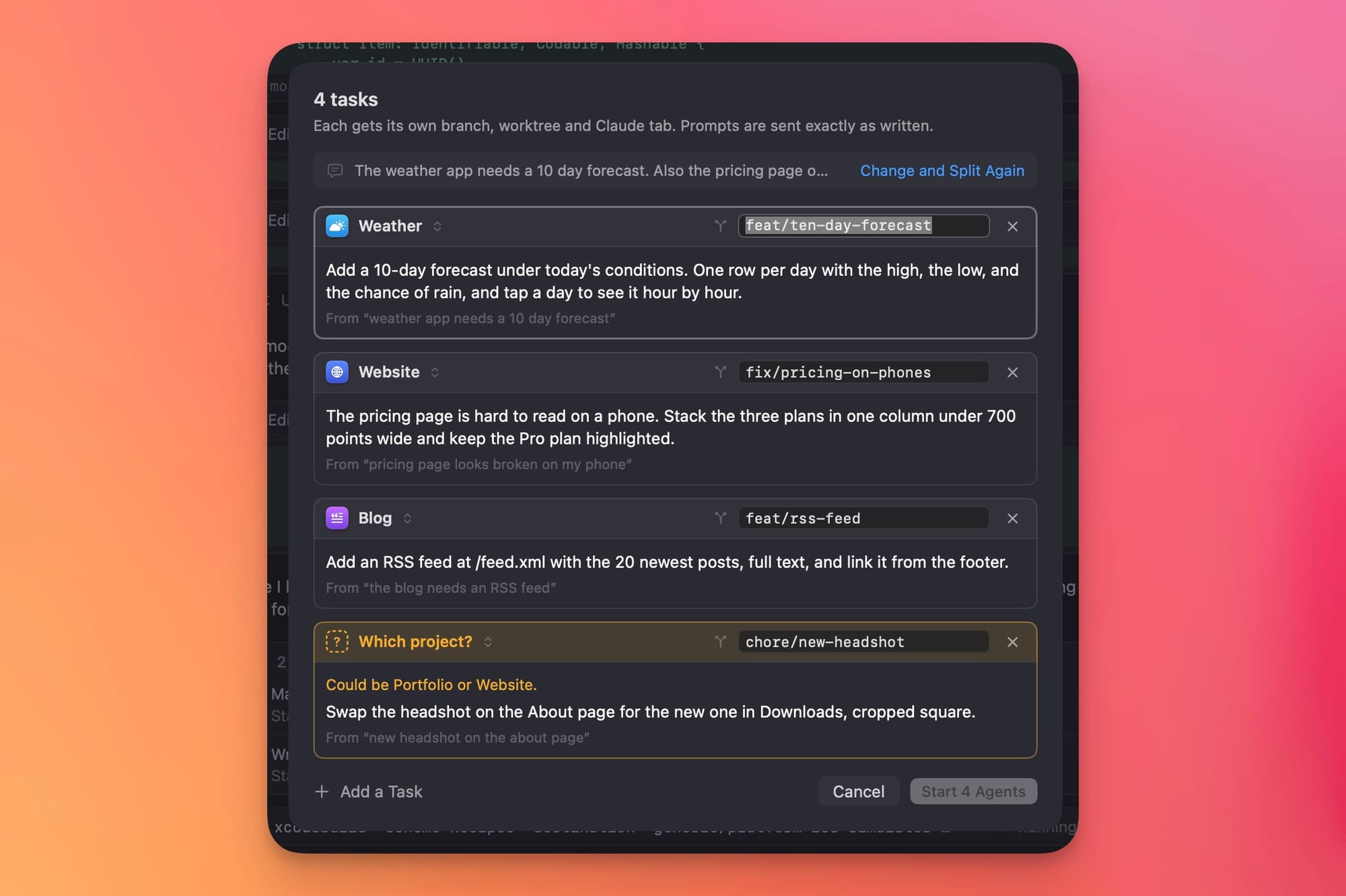
Sometimes my brain is just overflowing with things that I want to get done across my apps. It's not too hard to click into each project, start a new session, and type out what I want to be done in each app, but it would be a lot easier if I could just dictate into something for a minute or two, get all my ideas out of my head, and have the app turn those into tasks in the appropriate projects.
Workbench can do this, and it's freaking awesome.
What I do myself is open Workbench, click on the brain dump button, and I just dictate into my computer for a minute or two with all the ideas for what I want to do. Workbench then parses those requests and maps them to each project in the app and lets me review them. If it couldn't figure out what project I meant, I can assign it. If it got any of the exact text wrong for what I want it to do, I can edit that. And once I'm happy with everything, I just tell it to start, and it spins up work trees under each project with each task going in parallel. I chose to do work trees for this mode because you very well may have multiple feature requests for the same project, and you need to utilize work trees to have multiple branches going at the same time on the same machine.
You kind of need to experience this one on your own, so I'll just leave it there. But I think this is a really cool mode that I haven't seen before, and I really love.
Monitoring usage
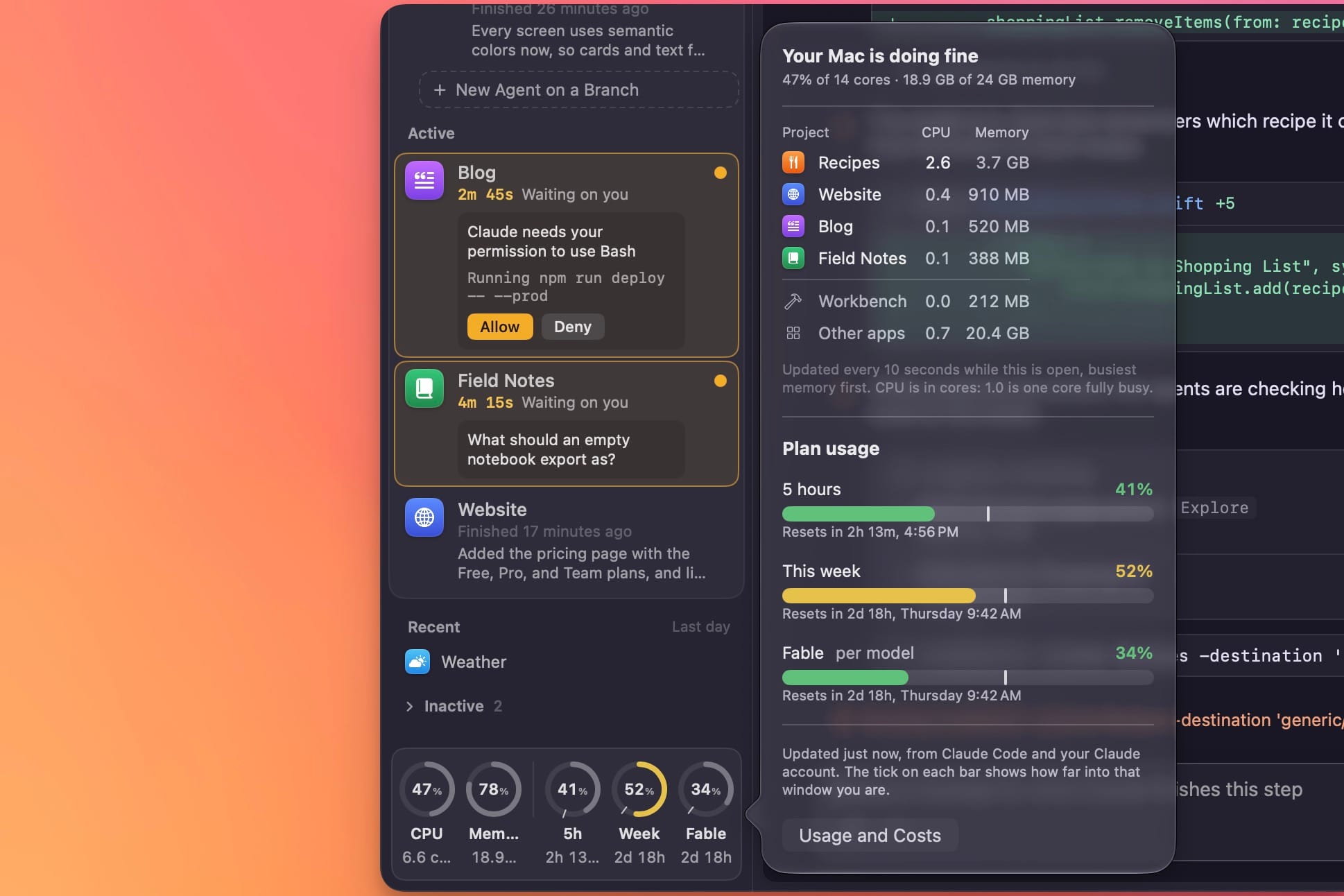
One of the things you may want to do is monitor your usage, both of your system resources and of your Claude subscription, and Workbench makes that easy. Down at the bottom of the left sidebar, you can see your CPU and RAM utilization numbers, and if any of them get out of control, you can just hover over that section to see what projects are consuming resources.
I find you will get the most benefit from this if you are doing iOS development, where the simulator may be running without you noticing and sucking up your battery. You can also see your five-hour, weekly, and fable limits listed as rings, so you can see how you're doing towards your general usage. And there's a little tick mark on each ring showing you how far through the session you are to know if you are likely to run out before the end of the respective session.
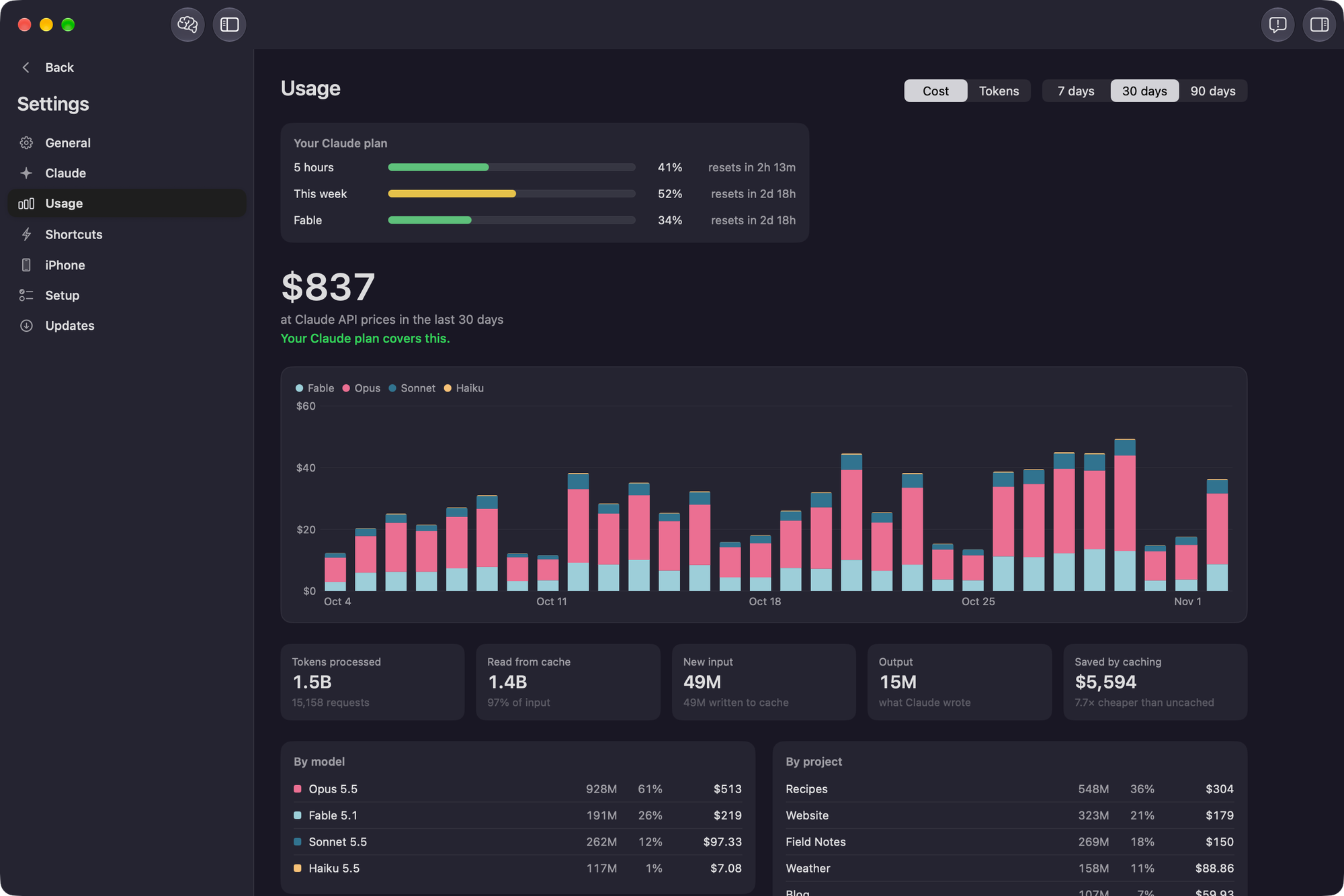
For fun, I've also added a general Claude usage page in the settings that shows you how much you're utilizing each model across each project and lets you know how much you would have spent in API credits if you weren't on a subscription.
The small things
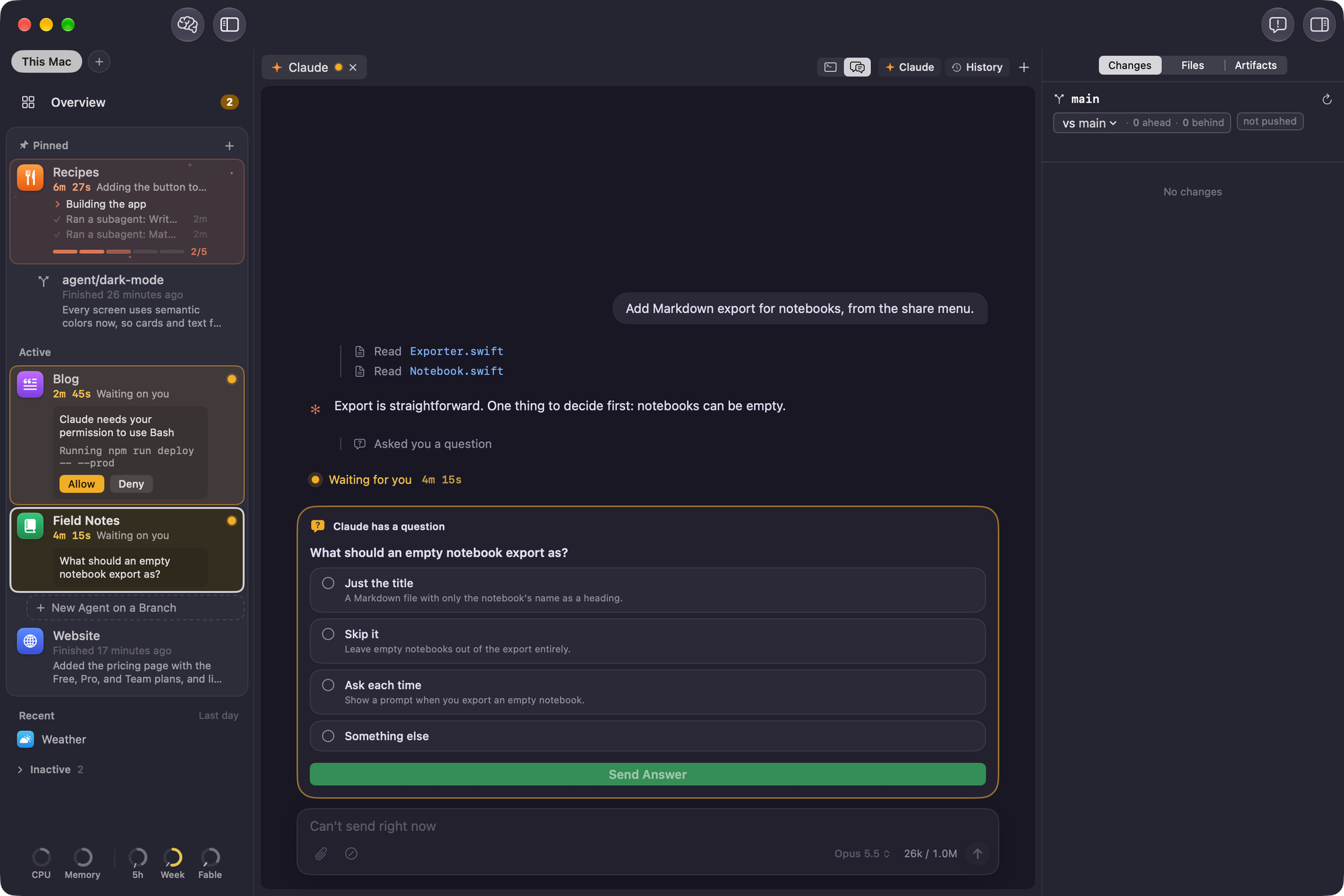
You can choose to use the traditional terminal view, or you can enable the chat view, which presents a generally nicer user interface and has a bespoke interface for things like permissions, questions, and artifacts.
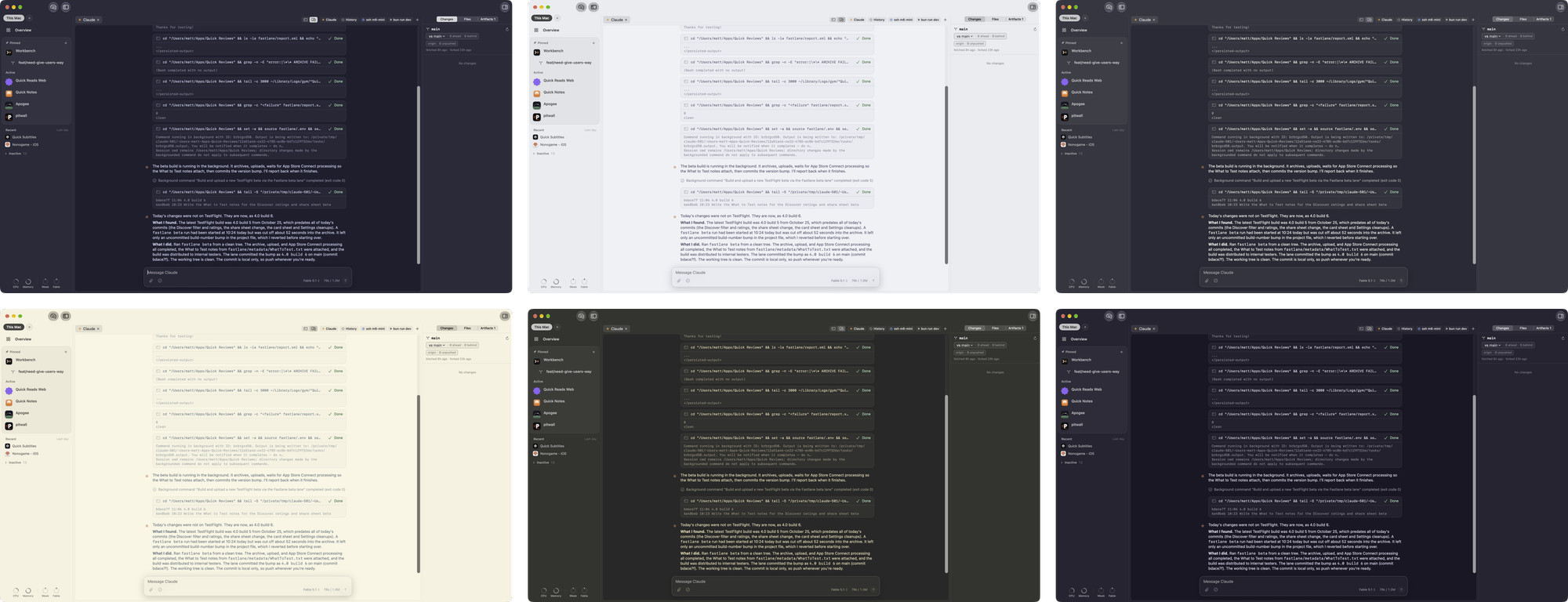
The app is built on libghostty, and if you have Ghostty installed already, it will pull your theme information and style the entire Workbench app to match. This works for light and dark mode and any terminal color scheme you can think of.
Workbench does a really good job of not making you lose your progress when you quit and reopen the app. It's not going to run your agents in the background, but if you quit and open it back up, your agents will generally pick up right where they left off.
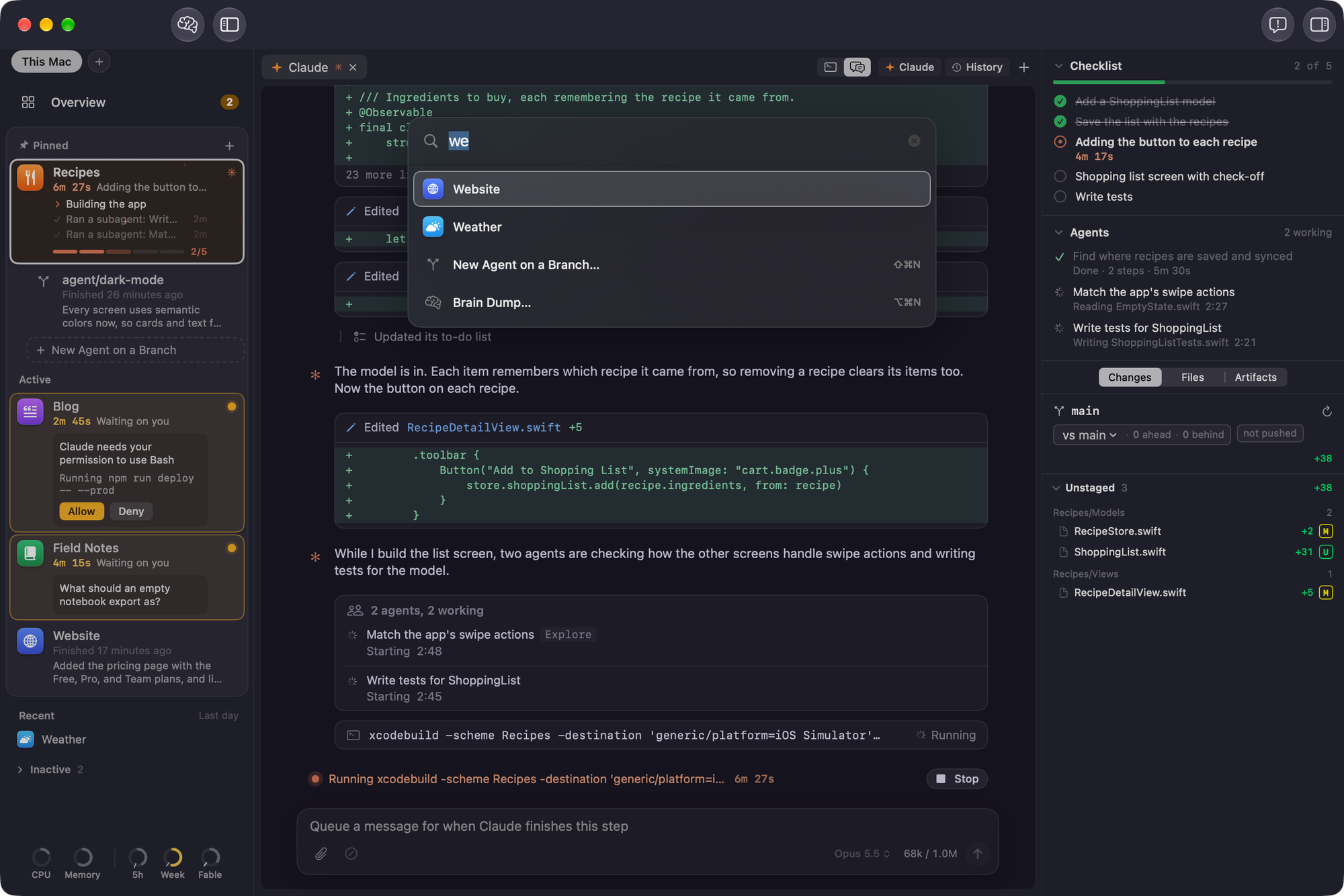
There is a command bar where you can hit Command K and quickly switch to a project or spin up a new agent or even start a brain dump.
Workbench has some ability to use itself. So if you want to add a project to the app, you can go through the UI to browse your file system and find the project, or from any Claude Code session, you can just ask it to do it for you and it'll do it.
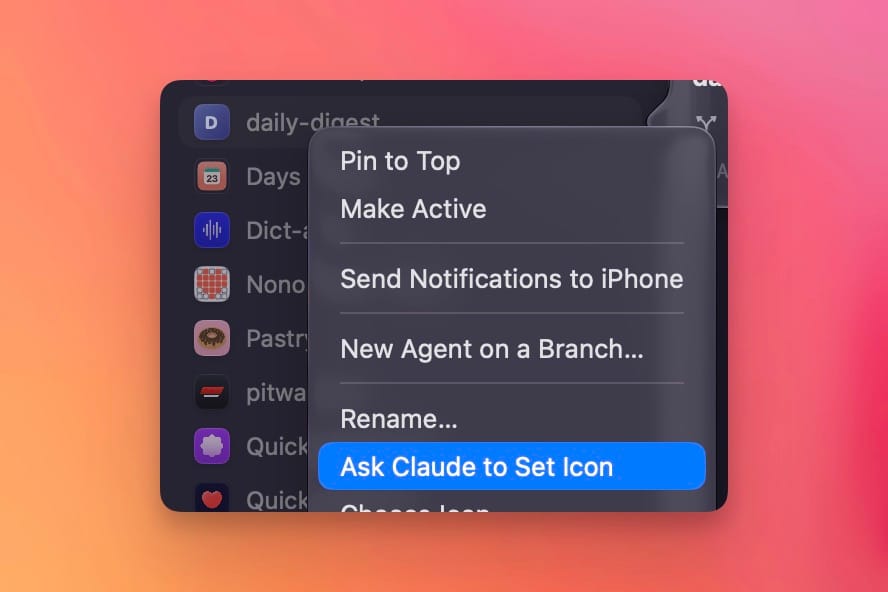
It sucks when projects don't have icons, so Workbench will try to determine what the app icon is when you first add the project, and if it can't, you can just right-click the project and tell it to find the icon.
Check it out now
You can download Workbench for the Mac now, and the iOS app will hopefully be available within a day or two. It's completely free and has no login. All you absolutely need is a Claude subscription so you can sign in to Claude Code – the app does nothing without this.